TUTORIAL
Publishing an article V6
Learn how to publish an article on your media: sections, dates and going live.

About publishing
Publishing an article makes it visible on one or more of your media. Until it is published, the article stays in Draft status and does not appear on the site. Publishing is managed from the article's Publications tab.
Open the Publications tab
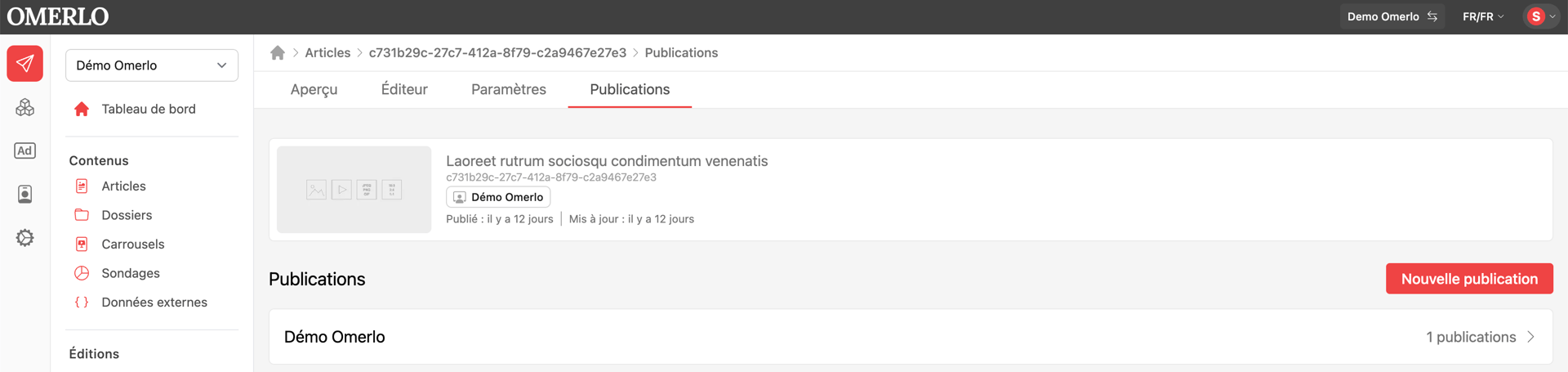
In the article editor, click the Publications tab. The header shows the current status (Published: N/A if the article is not yet published) and a list of your media, each showing its number of publications.
Create a publication
Click New publication. A window opens to configure how the article is distributed.
Choose the media and section
Select the Media to publish on, then the Section of that media where the article will appear. To distribute the same article on several media, create one publication per media.
Schedule the distribution
Set the start date and time in "Starts on", optionally an end date in "Ends on", then choose the Time zone. To publish immediately, leave the start date at now; to schedule, choose a future date.
Publish
Click Publish. The article becomes visible on the media on the chosen start date. Repeat for other media or sections as needed.
Manage or remove a publication
From the Publications tab, click a media to view its publications, edit the dates or remove them. Removing a publication unpublishes the article from that media.