TUTORIAL
Editing an article's completion statuses V6
Learn how to track and change an article's completion status in Omerlo V6. The status shows where an article stands in your editorial workflow, from draft to completed, independently of whether it is published.

What the completion status is for
The completion status shows how far an article has progressed through your editorial workflow, from the initial draft to the finished article. It helps your team see, at a glance, what is left to do on each article.
The completion status is separate from publishing: an article can be "Completed" without being published, and vice versa. Publishing is handled separately, in the Publications tab.
Where to find the status
The status appears as a colored badge at the top right of the article editor (for example "Draft" in yellow, "Completed" in green). In the Articles list, each article also shows its status badge, and the "All statuses" filter at the top of the list lets you display only the articles with a given status.
Available statuses
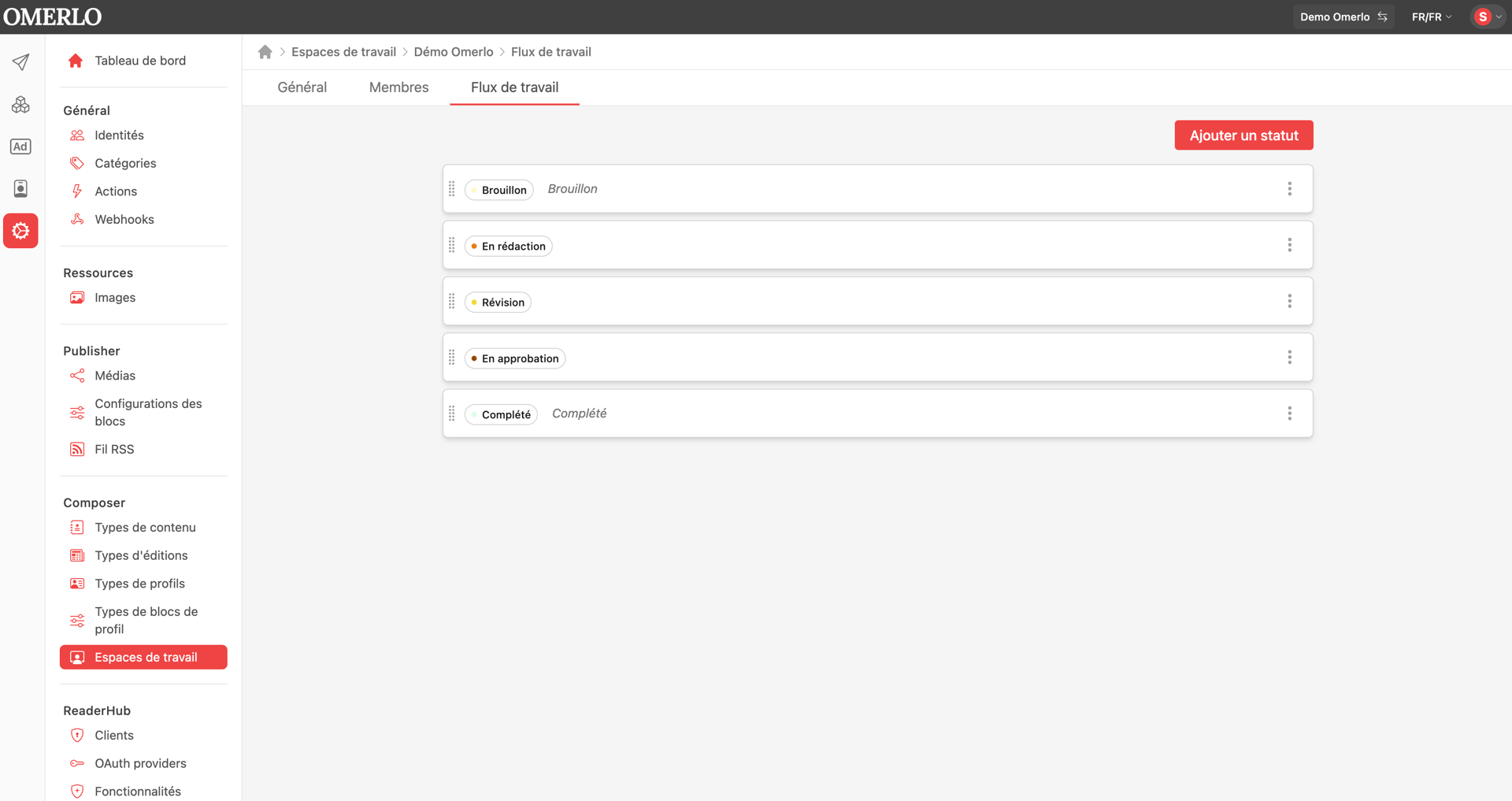
The available statuses are configured for your workspace, so they may vary from one media to another. They typically include a starting "Draft" status, one or more intermediate statuses specific to your workflow (for example a review step or "Awaiting visual"), and a final "Completed" status. Use them to reflect the real steps of your production process.
Where to configure the list of statuses
The list of statuses is managed in the administration, at the workspace level. Click the gear icon (Administration) in the left bar, then, under Composer, open Workspaces. Select the relevant workspace and open the Workflow tab: there you see all the statuses, from the starting "Draft" to the final "Completed".
From this tab, click Add a status to create a new one, use the menu (⋮) to the right of a status to Edit or Delete it, and drag and drop the statuses using the handle to change their order. The "Draft" and "Completed" statuses always frame the workflow; the intermediate statuses are your own. Configuring statuses requires administration rights on the workspace.
Changing an article's status
Open the article from the Articles list, on the Editor tab. At the top right, click the status badge (for example "Draft") to open the dropdown. Select the new status from the list. A Save button then appears: click it to apply the change. The badge updates and changes color to reflect the new status.
Until you click Save, the change is not recorded; if you leave the page, the article keeps its previous status.
In summary
The completion status tracks the editorial progress of your articles, from draft to completed, through the steps specific to your team. To change it: open the article, click the status badge at the top right, choose the new status, then click Save. The Articles list and its status filter then give you an overview of how all your content is progressing.
Please note that once an item or profile reaches "completed" status, the status cannot be changed.