TUTORIAL
Creating profile types V6
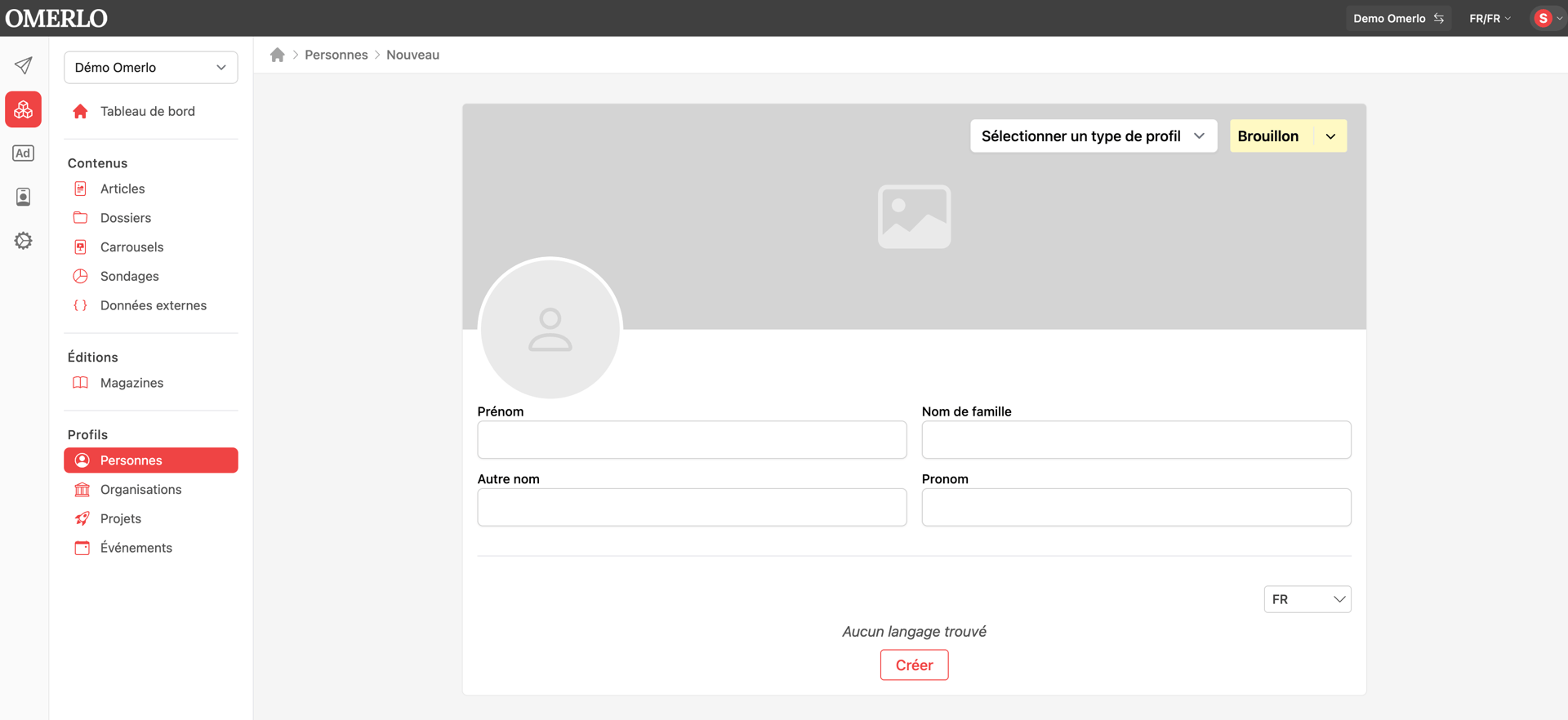
Profile types are used to create the cross-linking between the different profiles on your media. You can associate different content depending on the profile types you create.

Create the profile type
In the left sidebar, open the Administration (gear icon).
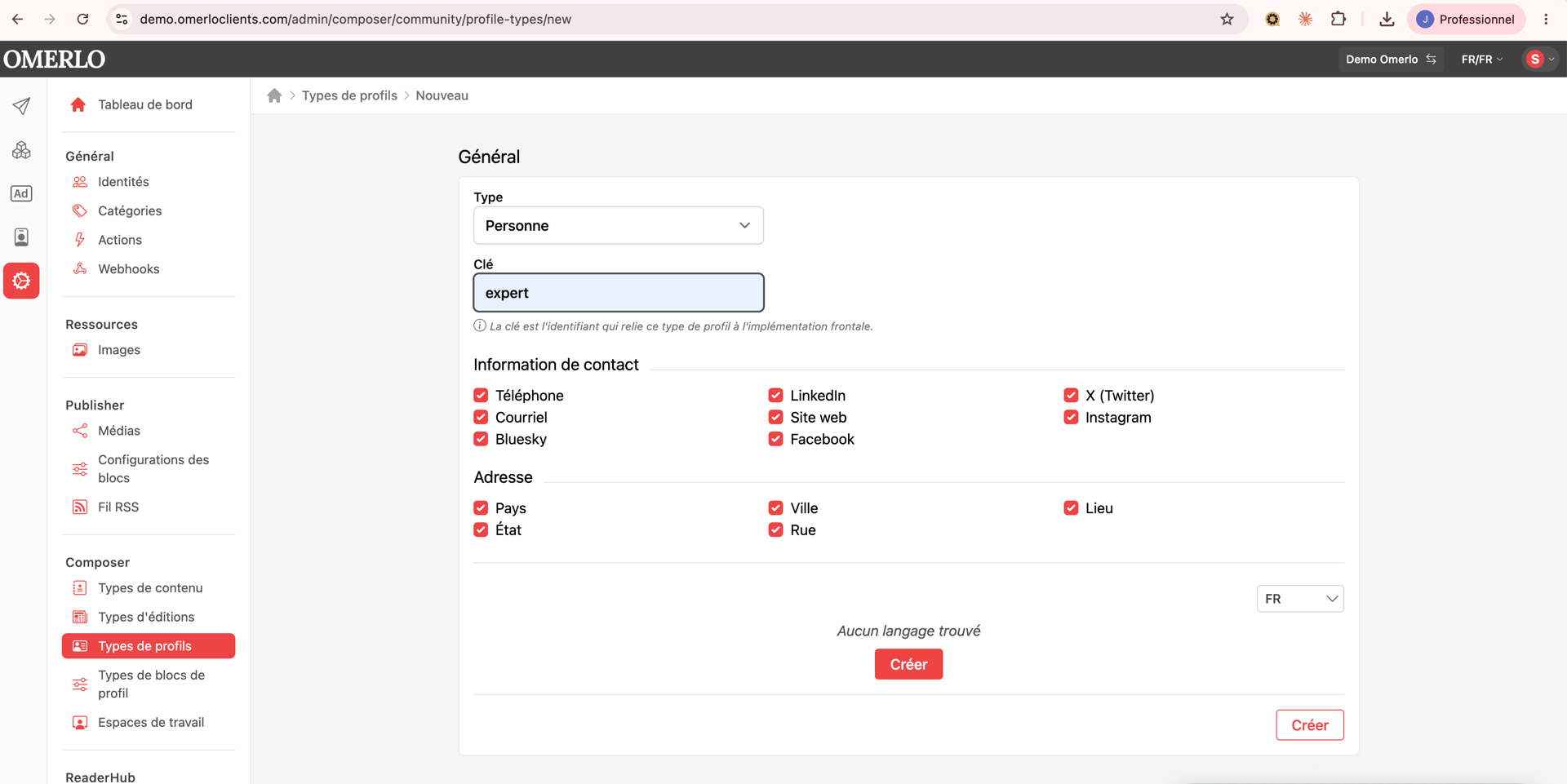
Under Composer, click Profile types, then New.
In the Type menu, choose the category: person, organization, project or event.
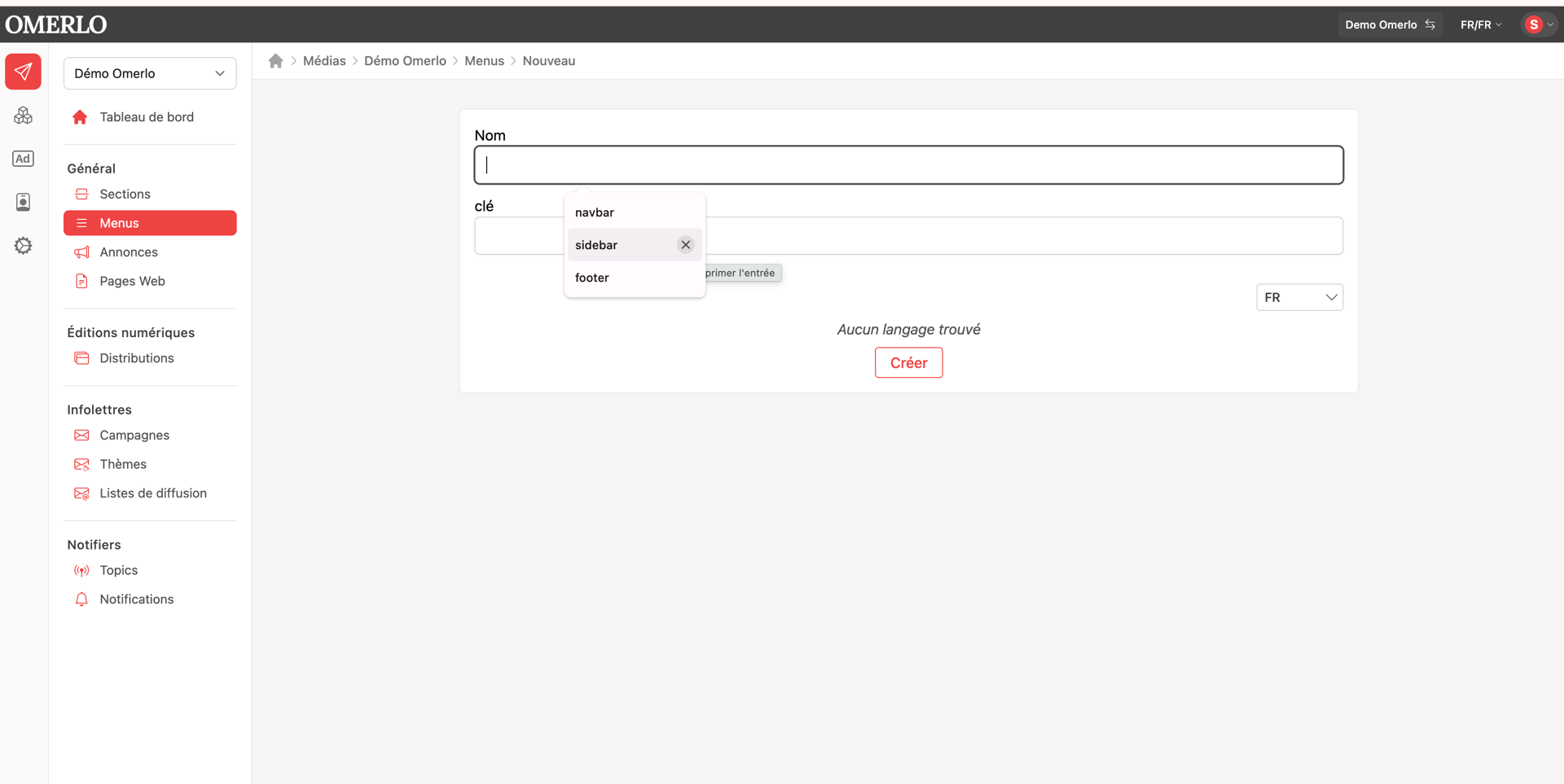
Enter the Key (the identifier that links the profile type to your site's display).
Check the contact information (phone, email, LinkedIn, website, Facebook, X (Twitter), Instagram, Bluesky) and the address fields (country, state, city, street, place) you want to make available for this type.
Click Create, then give the type a Name (for each language). You can also set default summary values.
Create the relation blocks
Relation blocks are the reusable components of the cross-linking.
In the Administration, under Composer, click Profile block types, then New.
In the Kind menu, choose the block type to create:
Person relations: to associate person profiles.
Organization relations: to associate organization profiles.
Event relations: to associate events.
Project relations: to associate projects.
Selected content: to associate articles.
Click Create, give the block a Name, then set the maximum number of entries and the maximum number of occurrences.
Link the blocks to the profile type (cross-linking)
Open your profile type (Profile types, three-dot menu then Edit).
In the Allowed block types section, check the relation blocks that profiles of this type can use.
Important: set up the cross-linking in both directions. For example, to link a person and an organization, allow an "Organization relations" block on the Person type, and a "Person relations" block on the Organization type.
Your changes are saved automatically.
Give access to users
For a user to be able to create profiles of this type:
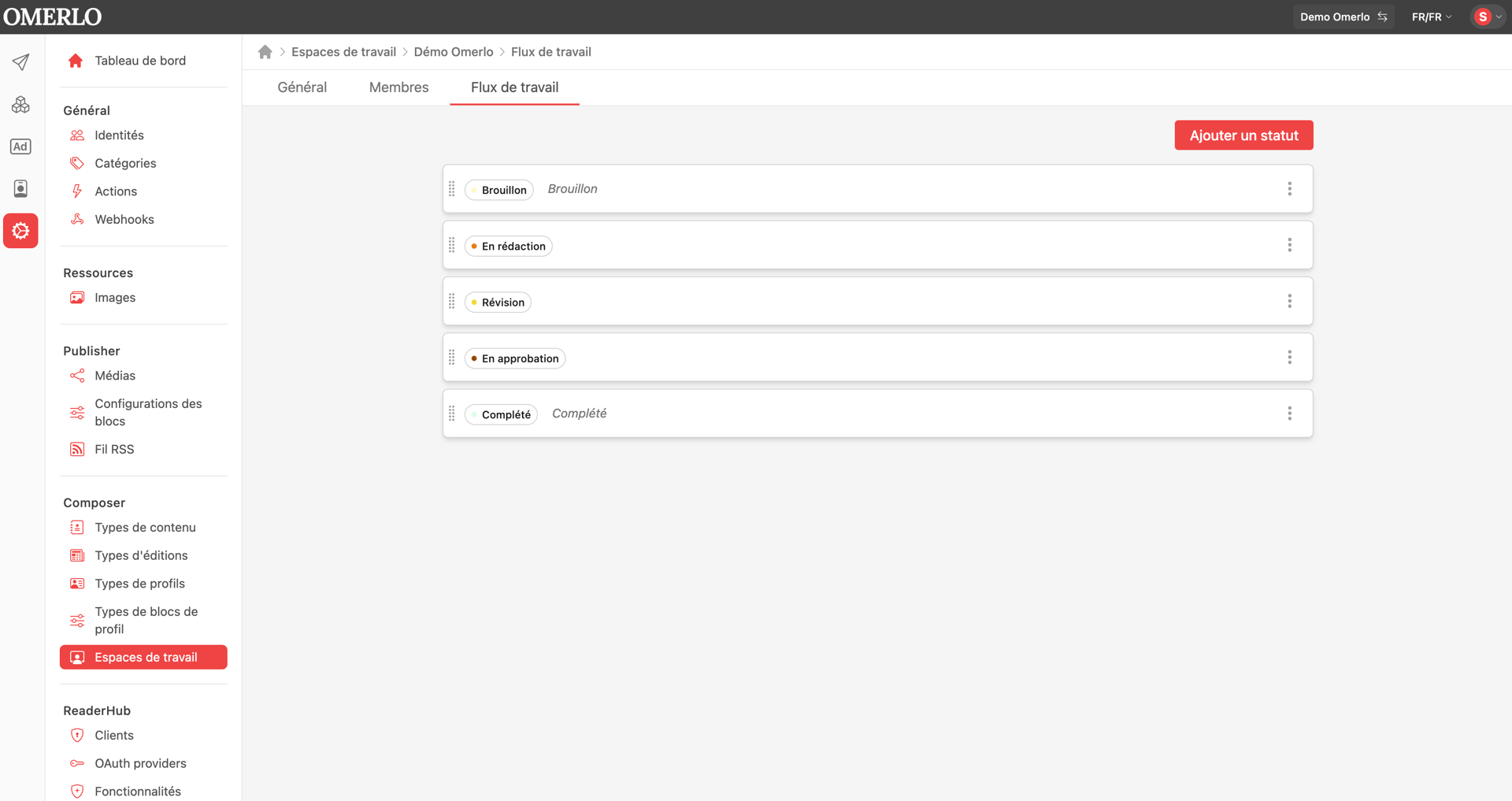
In the Administration, under Composer, open Workspaces.
Click your workspace.
At the bottom of the page, under Latest members, click the desired member.
Allow read and write access.
Add relations to a profile
In Composer, open Profiles (People, Organizations, Projects or Events), then create or open a profile of this type. The allowed relation blocks are then available to add the cross-linking, up to the defined number of entries.