TUTORIAL
Creating a profile (People, organizations and projects) V6
Learn how to create and edit a profile (Person, Organization or Project) in Omerlo V6: choosing the type, fields, summary and description, content blocks, contact and address, relationships with other profiles, and setting the status to Completed.
Creating a profile
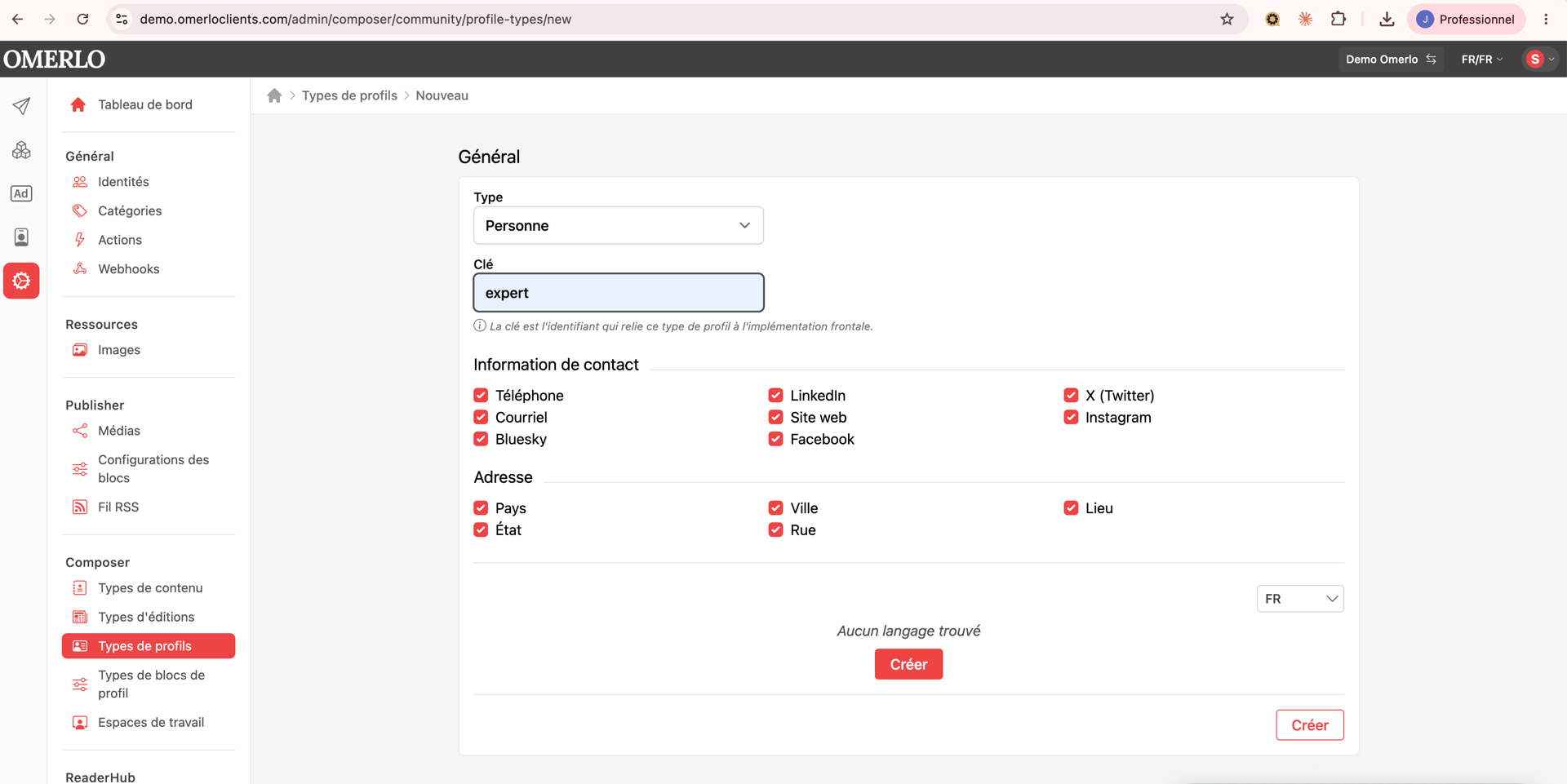
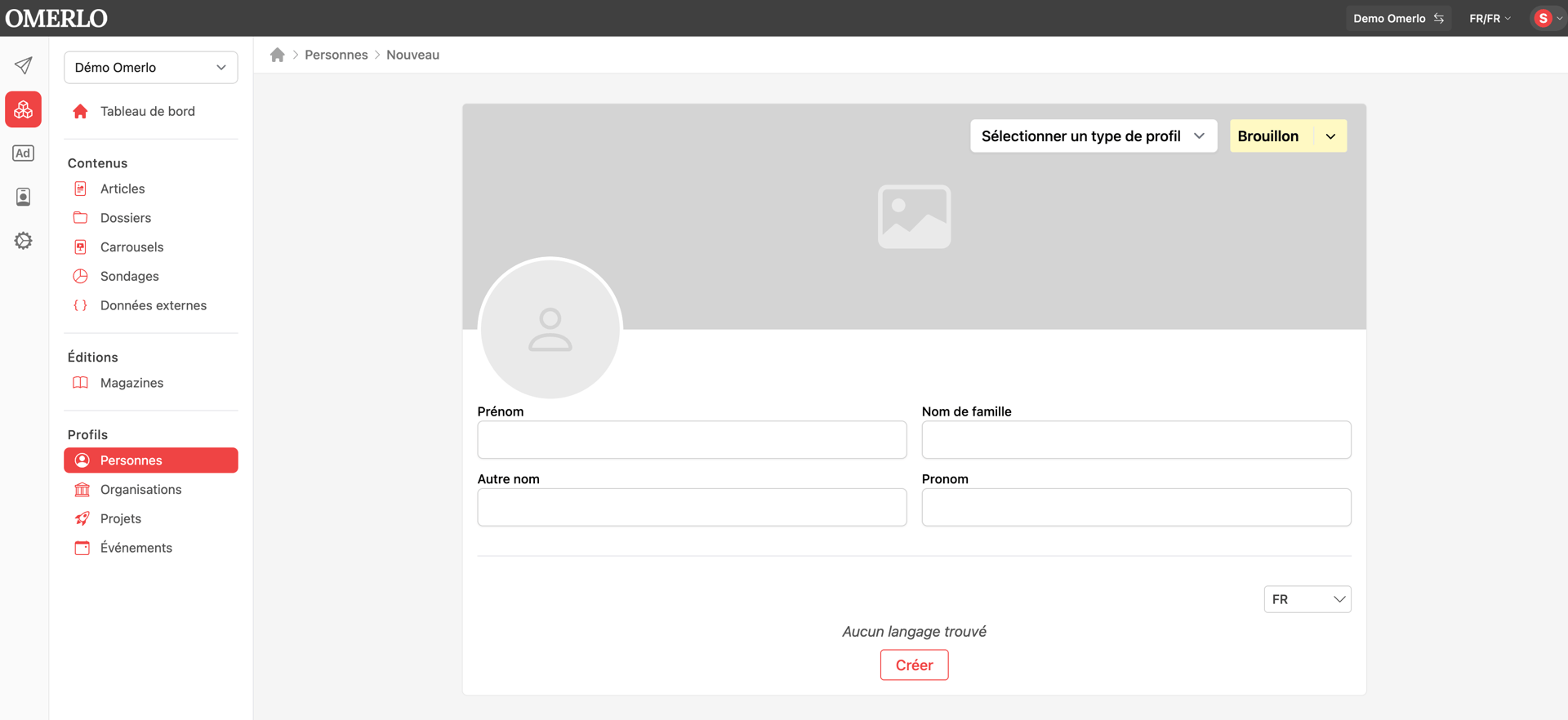
In the left bar, open the Composer area (the cells icon). Under Profils, click the type you want: Personnes (People), Organisations or Projets (Projects). Then click Nouveau.
At the top of the form, select the desired profile type. The profile type mainly determines the relationships you can display with the profile you create. Fill in the fields (for example First name, Last name for a person), add the profile photo, then select the language(s) you want. To manage both languages, click FR then Créer, then choose EN and click Créer again.
Then add the profile's Summary (Sommaire) and Description, and click Ajouter. The summary is also used as the description when the profile is set as an author: keep the summary short.
Adding content, contact and address
As with an article, you can add blocks (Text, Image, HTML, Video, etc.) that will appear on the profile. You can also fill in the contact information and the address. Remember to save each block.
Adding relationships
You can link the profile to other people, organizations, projects, events or articles, depending on what you have added. These relationships appear on the profile and depend on the profile type chosen at creation.
Setting the status to Completed
Once the profile is finished, change its status to Completed. Only completed profiles are displayed on the media.
Editing a profile
Open the profile to edit, make your changes in the relevant fields, then click Save.
Deleting a profile or changing its workspace
Open the relevant profile, go to the Settings (Paramètres) tab, then click the button you want (delete the profile or change workspace) and confirm the action.