TUTORIAL

Managing workspaces V6

Learn how to create a workspace in Omerlo V6, add users with their permissions, and affiliate workspaces to share and distribute content.

Published and updated on June 29, 20261 min read
Managing workspaces V6

Creating a new workspace

In the left bar, click the Administration icon (gear). Under Composer, select Workspaces (Espaces de travail), then click Nouveau.

Fill in the Name field to name your workspace. You can also set the canonical domain (Domaine canonique) and the Initial status. Then select the language (for example FR) and click Créer to activate the description, then click Créer at the bottom to save the workspace.

Adding a user to the workspace

Open your workspace by clicking its name, then open the Membres (Members) tab. Click Nouveau at the top right: an "Add a workspace member" window opens. Search for the person to add and click their name when it appears.

On the permissions page, grant the desired rights. Use Tout autoriser (Allow all) to give access to all content, edition and profile types, or set permissions one by one. For each type you choose Lecture (Read) and/or Écriture (Write): Read only lets the user view content, while Write lets the user create and edit content. The Tout autoriser / Tout révoquer (Allow all / Revoke all) buttons speed up configuration per section.

Affiliating workspaces

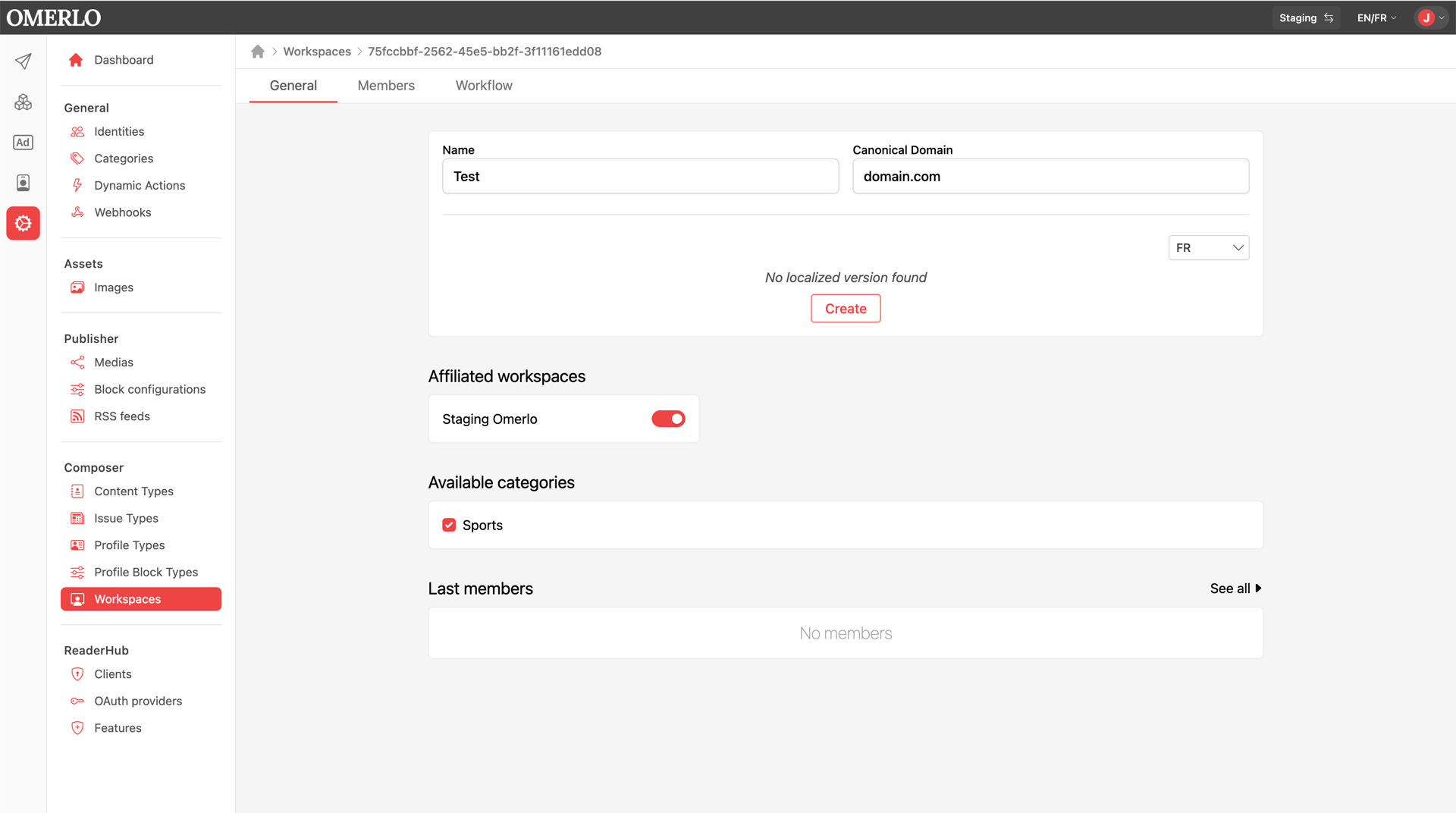
Go back to the relevant workspace and open the Général tab. In the Espaces de travail affiliés (Affiliated workspaces) section, toggle on the workspaces you want to share content with so it can be displayed on their media.

Notes: affiliation does not have to be reciprocal; it depends on the display you want. To publish an article in an affiliated workspace, the workspace used to display the content must be associated — otherwise publishing on that workspace won't be possible. The same applies to displaying profiles.
Other articles

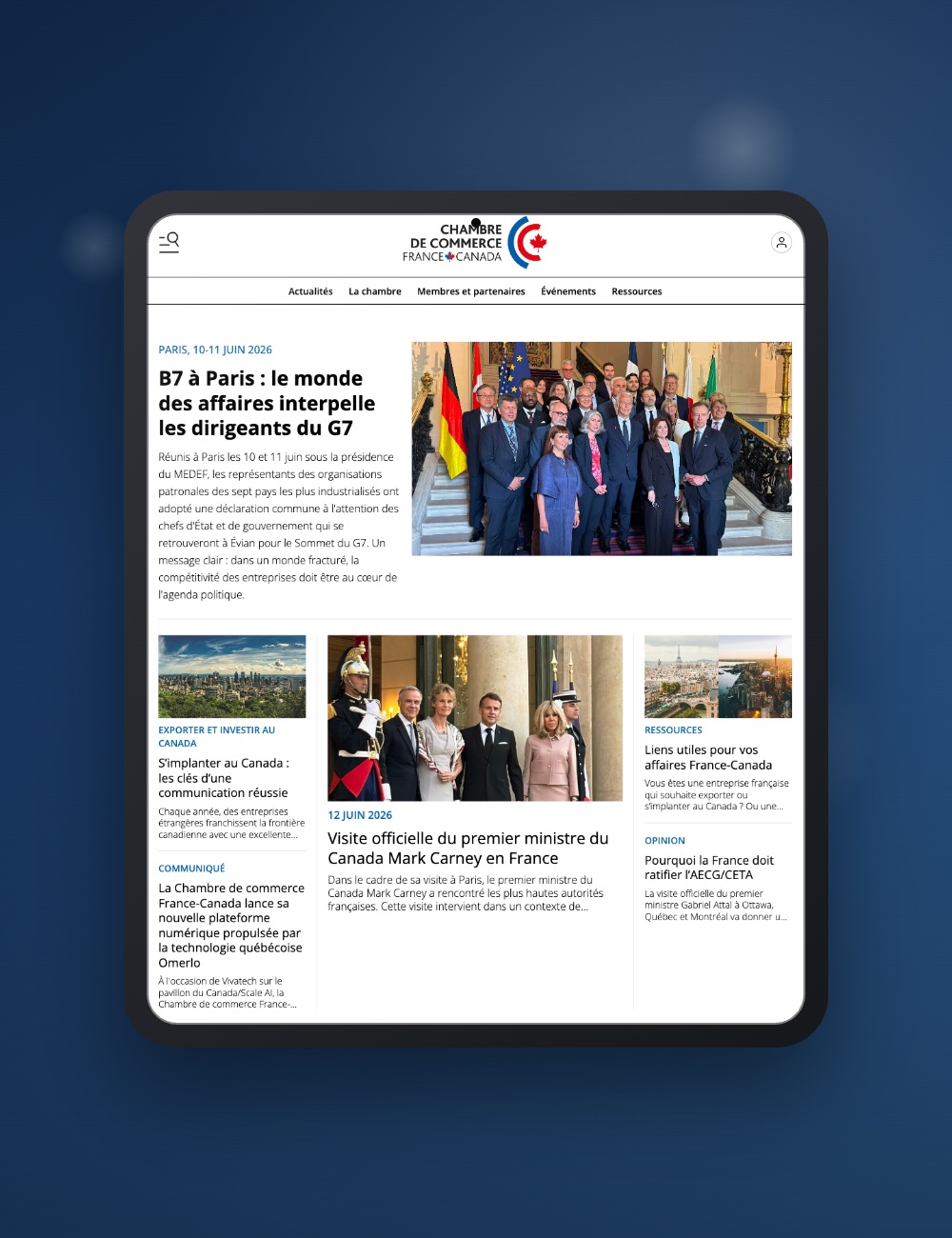
France-Canada Chamber of Commerce chooses Omerlo for its new media site

Realiazations

France-Canada Chamber of Commerce chooses Omerlo for its new media site

At VivaTech, on the Canada/Scale AI pavilion, the France-Canada Chamber of Commerce unveiled its new digital platform, powered by Omerlo. At the heart of business relations between the two countries since 1956, the CCFC is taking a strategic step: building a living media platform to showcase French-Canadian economic and cultural exchanges all year round.

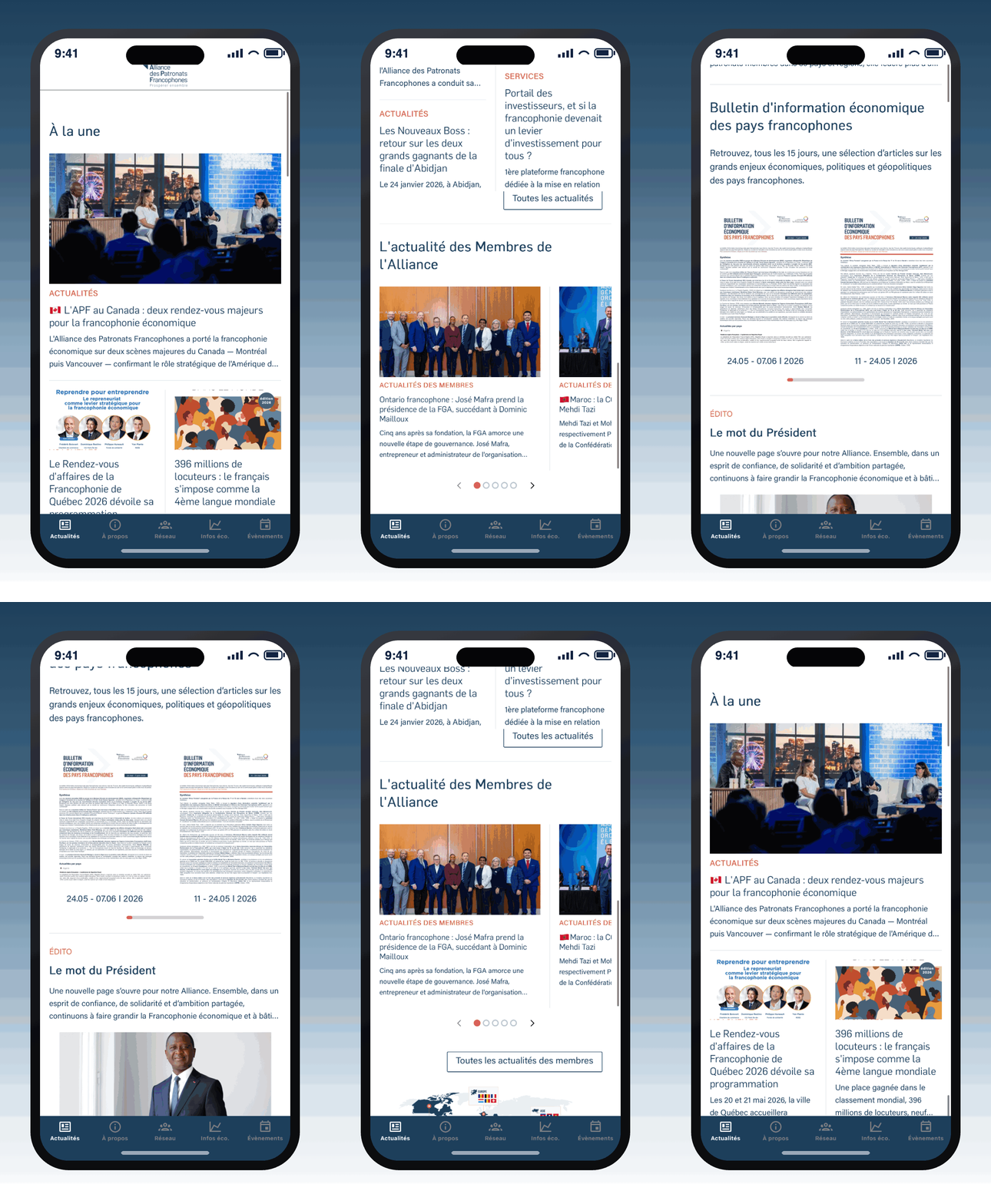
The Alliance of Francophone Employers' Organizations Launches Its Mobile App

Realizations

The Alliance of Francophone Employers' Organizations Launches Its Mobile App

The Alliance of Francophone Employers' Organizations, the leading economic network in the Francophone world, now has a mobile application powered by Omerlo. Available on iOS and Android, it brings together in a single space the member directory, economic news, the bimonthly Economic Bulletin, and the network's international agenda — to connect and inform the Francophone business community on a daily basis.

Creating menus on your media V6

TUTORIAL

Creating menus on your media V6

Create and organize your media's navigation menus to guide your readers.

Creating profile types V6

TUTORIAL

Creating profile types V6

Profile types are used to create the cross-linking between the different profiles on your media. You can associate different content depending on the profile types you create.

Editing an article's completion statuses V6

TUTORIAL

Editing an article's completion statuses V6

Learn how to track and change an article's completion status in Omerlo V6. The status shows where an article stands in your editorial workflow, from draft to completed, independently of whether it is published.