TUTORIAL
Creating your media's sections V6
Learn how to create and structure your media's sections and sub-sections in Omerlo V6, and how to configure their display, their article feed and their blocks.

Accessing sections
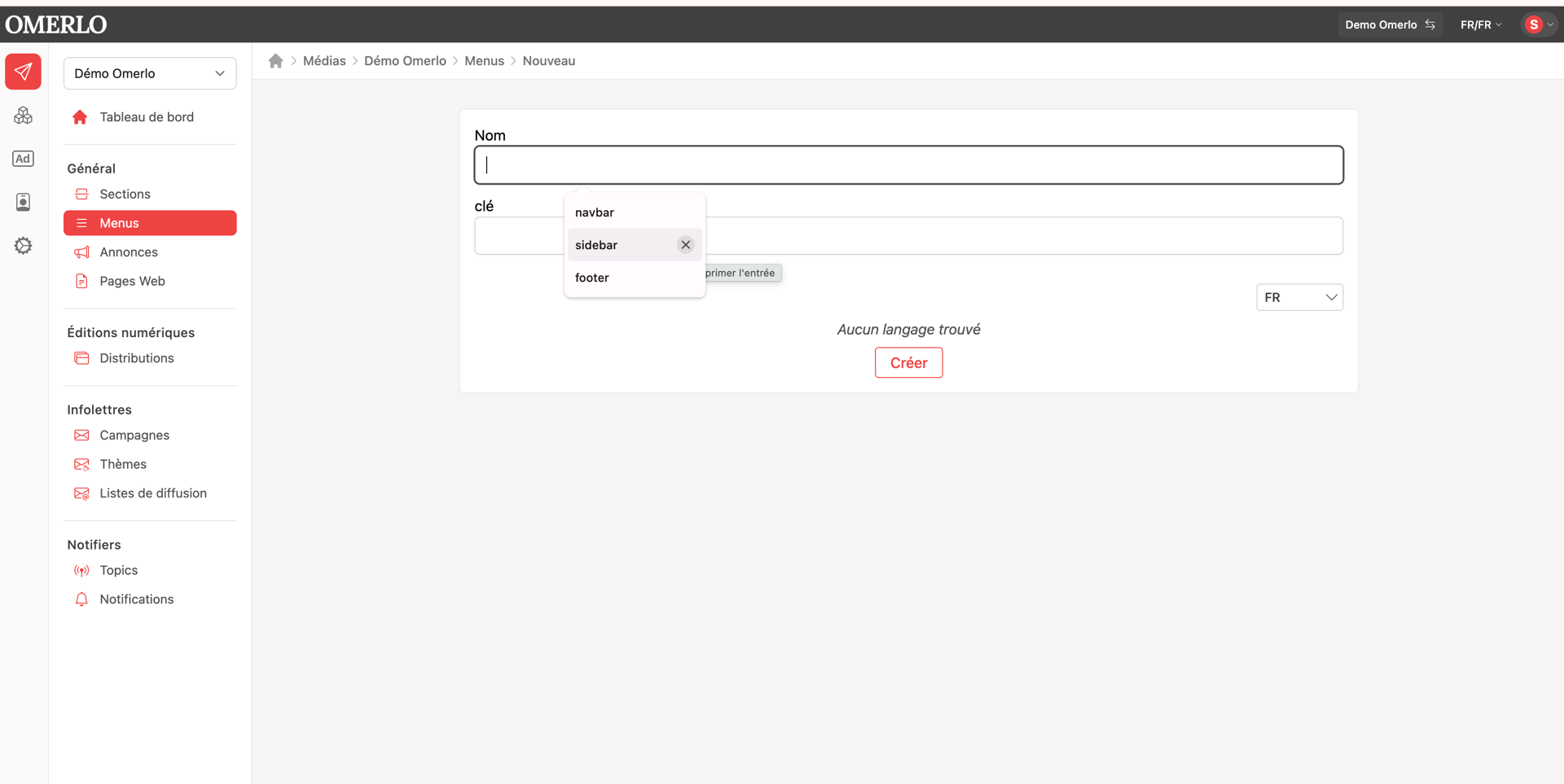
Sections are managed in the Publisher area. Click the Publisher icon (the paper plane) in the left bar, then select your media using the dropdown at the top left. Under Général, click Sections: the media's section list appears, with a Nouveau (New) button at the top right.
Creating a section
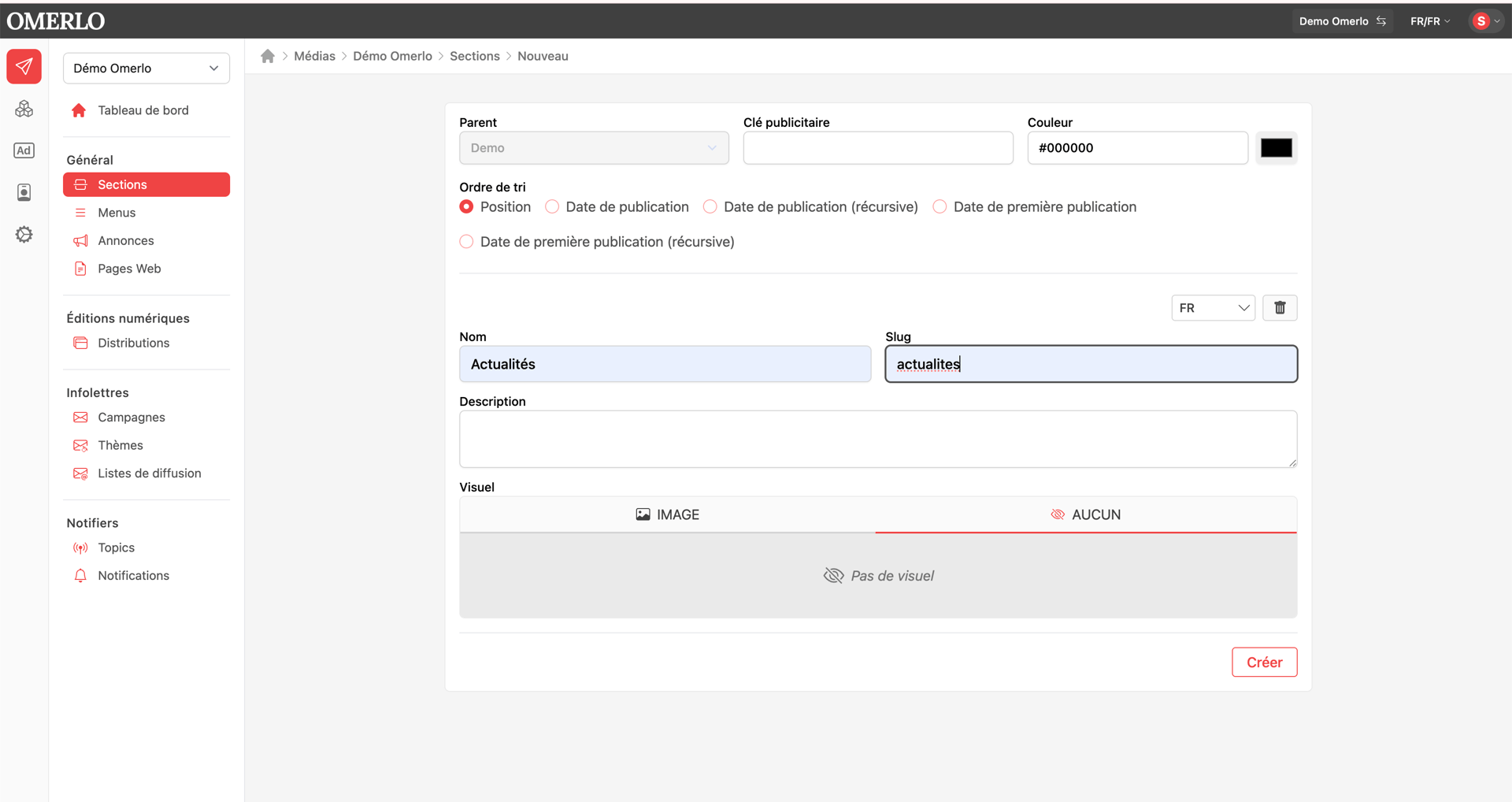
Click Nouveau. In the form, the Parent field is set to the root section (by default, your media's home): leave it as is for a top-level section. You can also set an advertising key (Clé publicitaire), a Colour and the article sort order (Ordre de tri).
Then select the language (for example FR) and click Créer to activate it. To manage both languages, click FR then Créer, then choose EN and click Créer again. Enter the section's Name; if the Slug doesn't fill in automatically, copy the name. The description and visual are optional. Repeat for each language created, then save.
Creating a sub-section
A sub-section is simply a section whose Parent is another section. Two ways to do it: from the Sections list, open the (⋮) menu of the parent section and choose Nouveau (the parent is then pre-filled); or click Nouveau and select the parent section in the Parent field. Then fill in the language, Name and Slug as for a section. Check in the Parent field that the sub-section is attached to the right page.
Configuration tab
When you open a section, the Configuration tab lets you: choose the sort order of the articles published in that section (Position, Publication date, Publication date recursive, First publication date, First publication date recursive); edit the Name and Slug; add a Description and a Visual; set an advertising key, a Colour and Metadata; and apply template restrictions if you only want to allow certain templates in the section.
Feed tab (Fil)
The Fil tab gathers the section's articles. You can add articles with the Nouveau button, reorder the display by drag and drop (if the chosen sort order is Position), edit an article's publication via the (⋮) menu then Modifier (start and end dates), and remove an article from the section via the (⋮) menu then Supprimer.
Blocks tab (Blocs)
The Blocs tab is where you choose the section's display template on your media: you select each of the blocks that present the articles.