TUTORIAL
Creating a PDF magazine V6
Build a PDF magazine from your content and publish it on your media.

About PDF magazines
A PDF-type magazine lets you embed a PDF document into your media and offer it for reading directly online. Magazines are managed in the Composer, under the Editions section.
Create a new magazine
In the left menu, open the Composer (hexagon icon), then under the Editions section, click Magazines. The page shows the list of your magazines. Click New to create one.
Choose the PDF genre
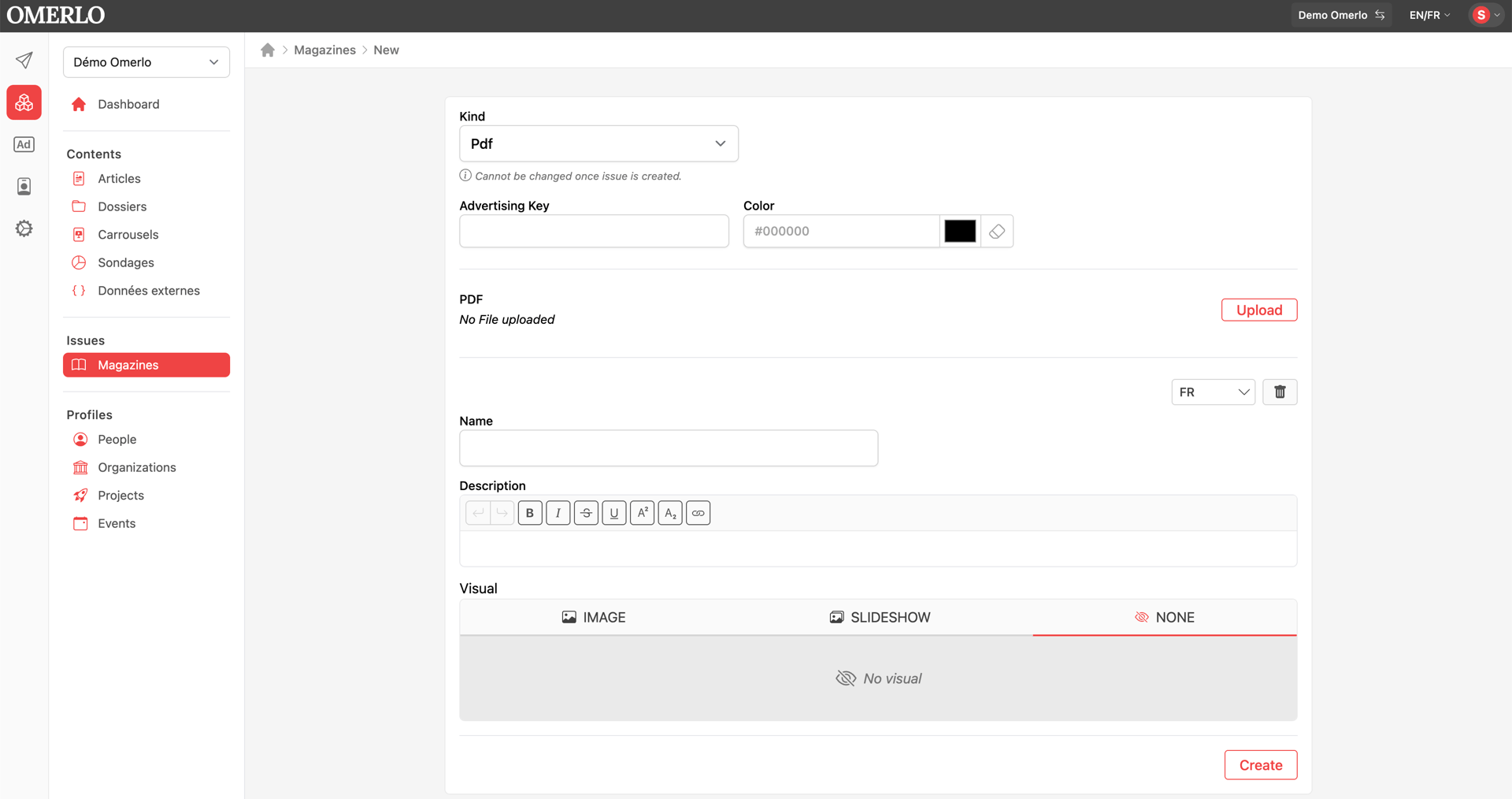
In the Genre field, select Pdf from the dropdown. Note: the genre can no longer be changed once the edition is created. You can also fill in an Ad key and a Color, both optional fields.
Upload the PDF document
In the PDF section, click the Upload button (on the right). Choose your PDF file, then upload it. Once the file is added, its name replaces the "No file uploaded" notice.
Fill in the details and create
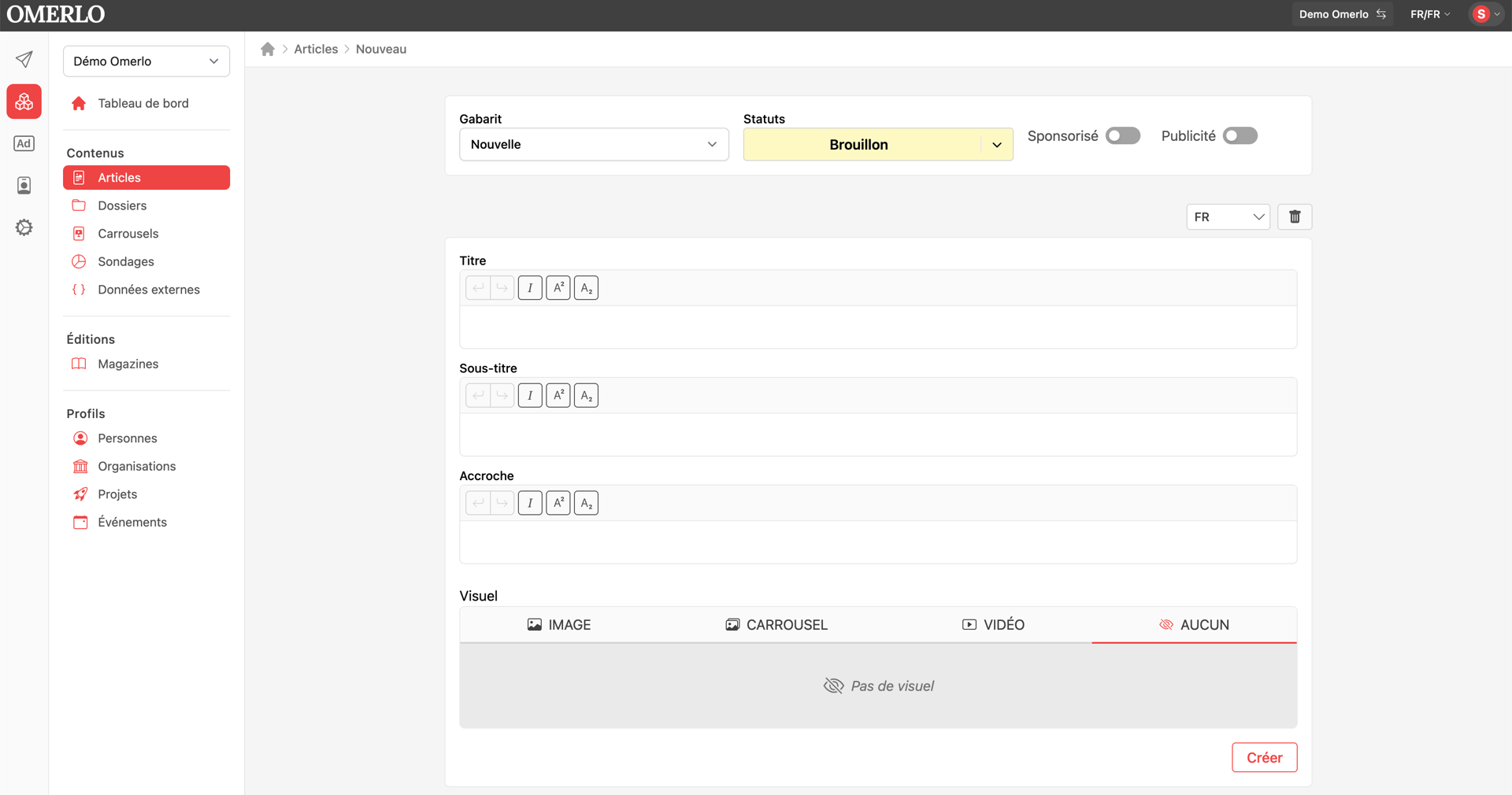
For each language, enter the magazine Name and, if needed, a Description. You can also add a Visual (image or carousel) or leave it as None. Then click Create to save your magazine. It then appears in the Magazines list and its PDF can be read directly on your media.
Publish the magazine on your media
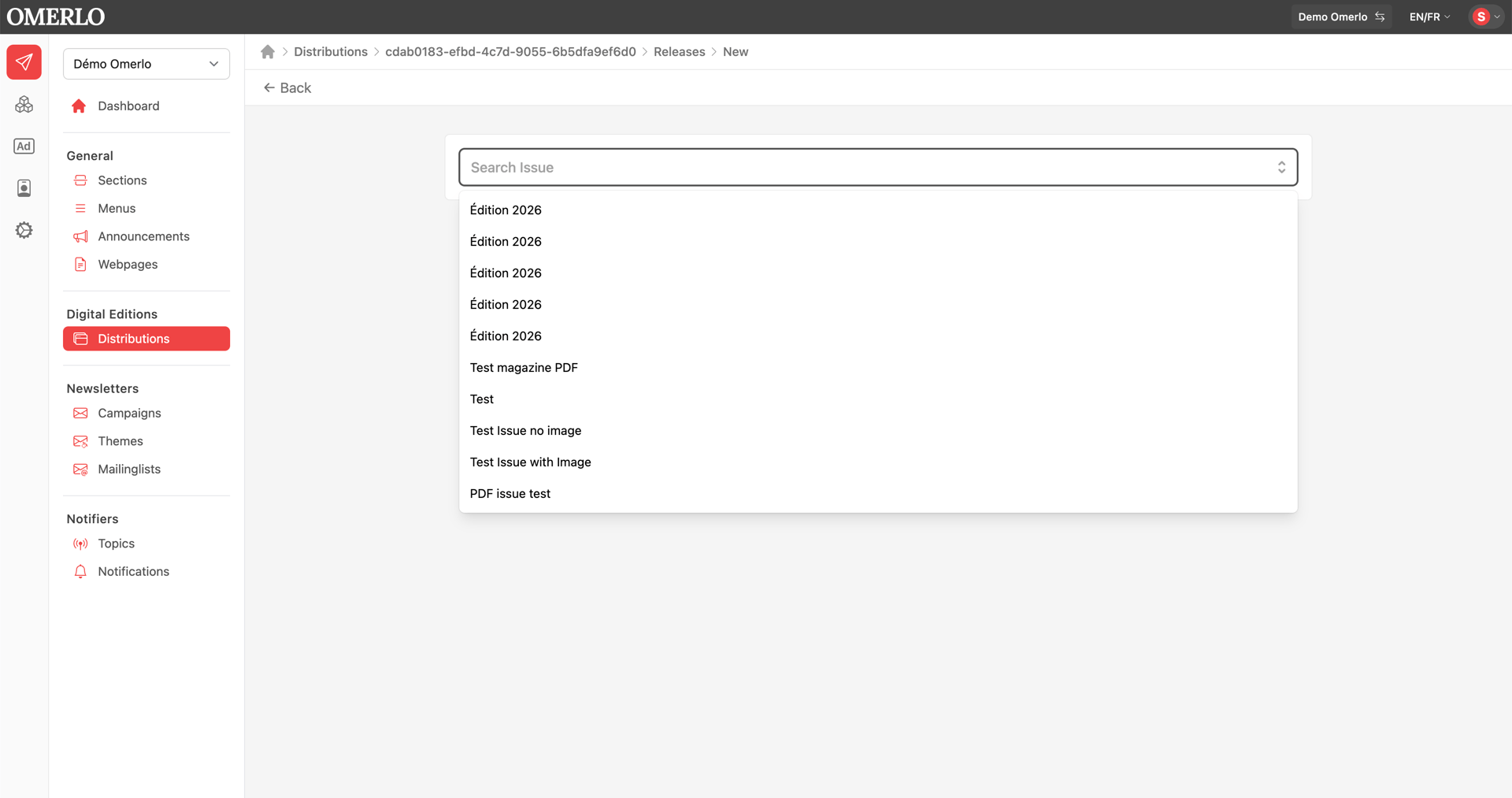
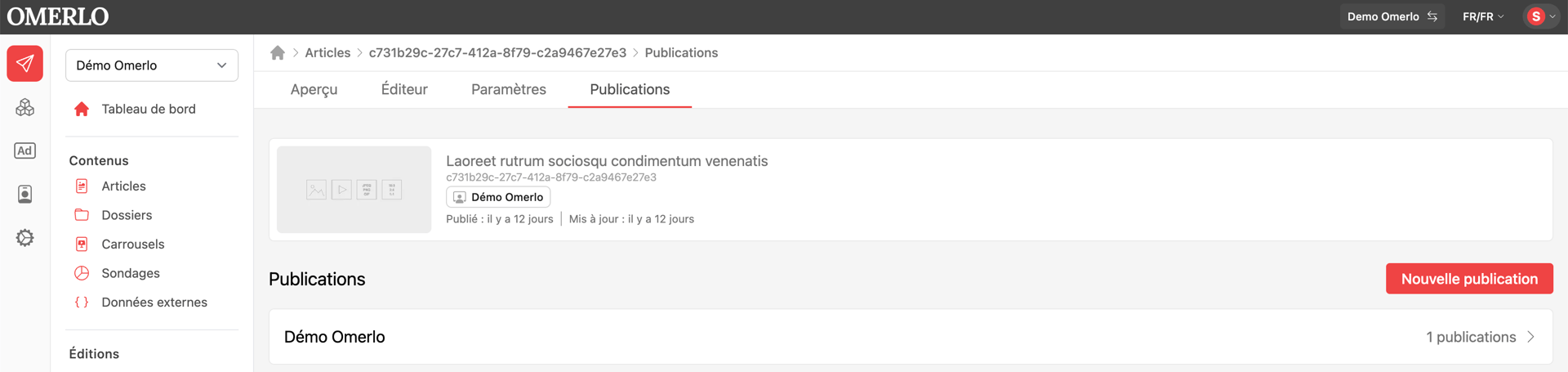
Once the magazine is created, open it and click the Publications tab at the top of the page. At the top right, select from the dropdown the media you want to publish to, then click New.
In the "New publication" window, select the distribution you want to publish the magazine into, then confirm. The magazine then appears in that media's publications list and becomes accessible on your site.
Good to know: publishing is done into a distribution. If no distribution appears for the selected media, create one first in the Publisher, under Digital editions, in the Distributions section.