TUTORIAL
Push notifications: Topics and Notifications V6 (Mobile apps only)
Set up Topics and send push notifications to your readers on mobile apps, step by step.

About push notifications
Push notifications send alerts straight to the device of readers subscribed to your app. They are managed in the Publisher, under Notifiers, in two parts: Topics (the subscription channels) and Notifications (the messages sent to those channels).
Understanding Topics
A Topic is a themed channel that readers subscribe to in the app. Each notification is sent to a Topic; only readers subscribed to that Topic receive it.
Create a Topic
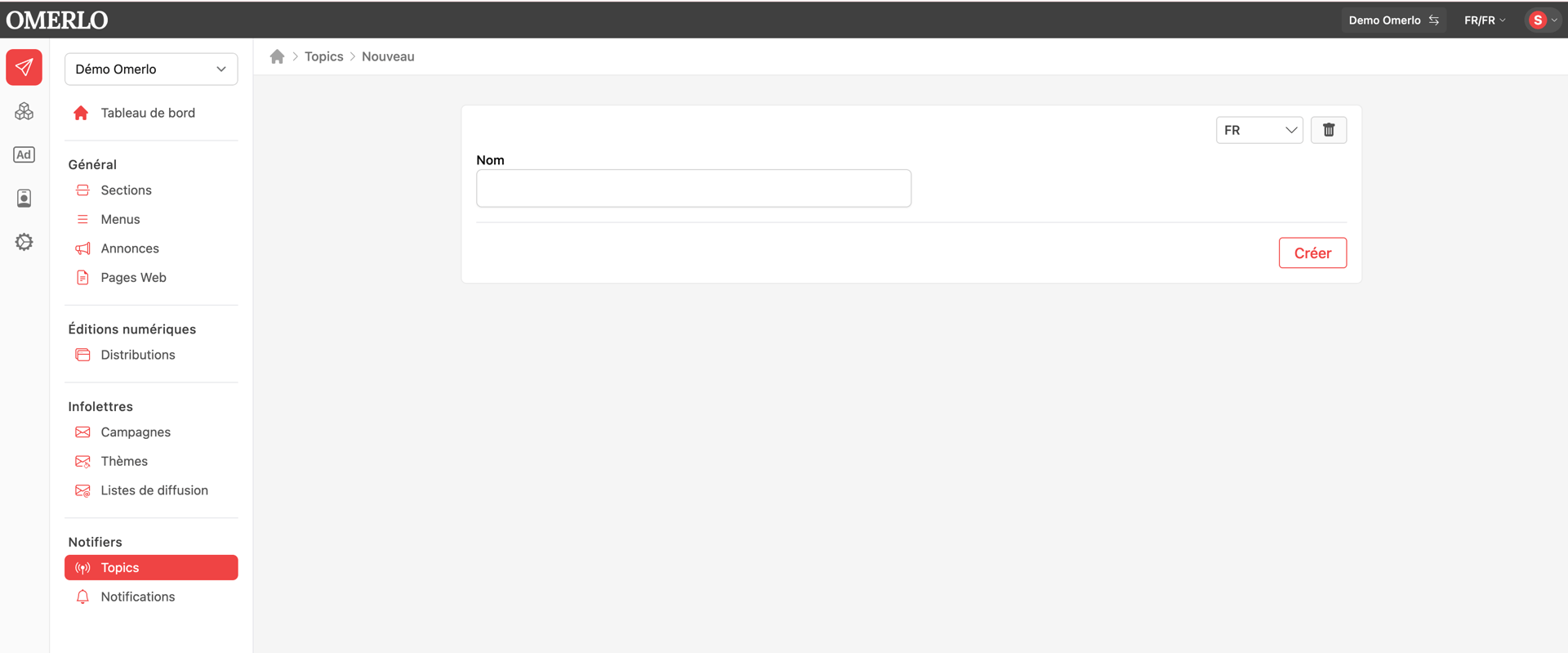
In the Publisher, select your media, then under Notifiers click Topics and New. Choose the language, enter the Topic's Name, then click Create. Repeat for each channel you need.
Create a notification
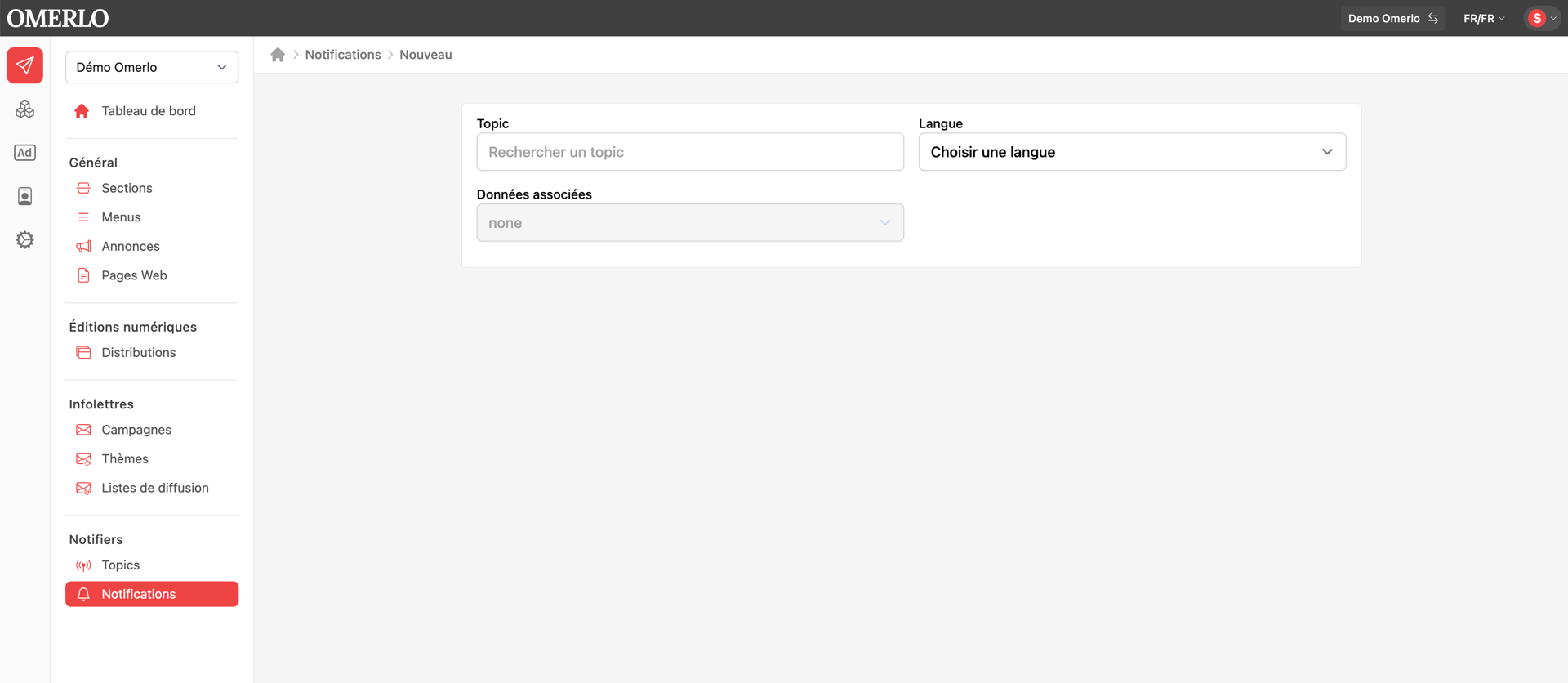
Under Notifiers, click Notifications, then New. Search for and select the destination Topic, then choose the Language of the notification.
Link content
Under Associated data, choose the link type: none, a content item or a profile. By linking an article or a profile, the notification opens that content directly when the reader taps it.
Add an image (optional)
Under Upload a file, select an image from the media library or upload one. This image accompanies the notification on the reader's device.
Send the notification
Check the Topic, language, associated content and image, then create the notification to send it. It is delivered to every reader subscribed to the chosen Topic.