TUTORIAL
Managing the image library V6
Import, organize and reuse your visuals with Omerlo's image library.

About the image library
The image library brings together all the images used in your media. Each image is added to it automatically when it is uploaded to an article's visual or to an Image block. This screen lets you find, view and edit the metadata of these images.
Accessing the library
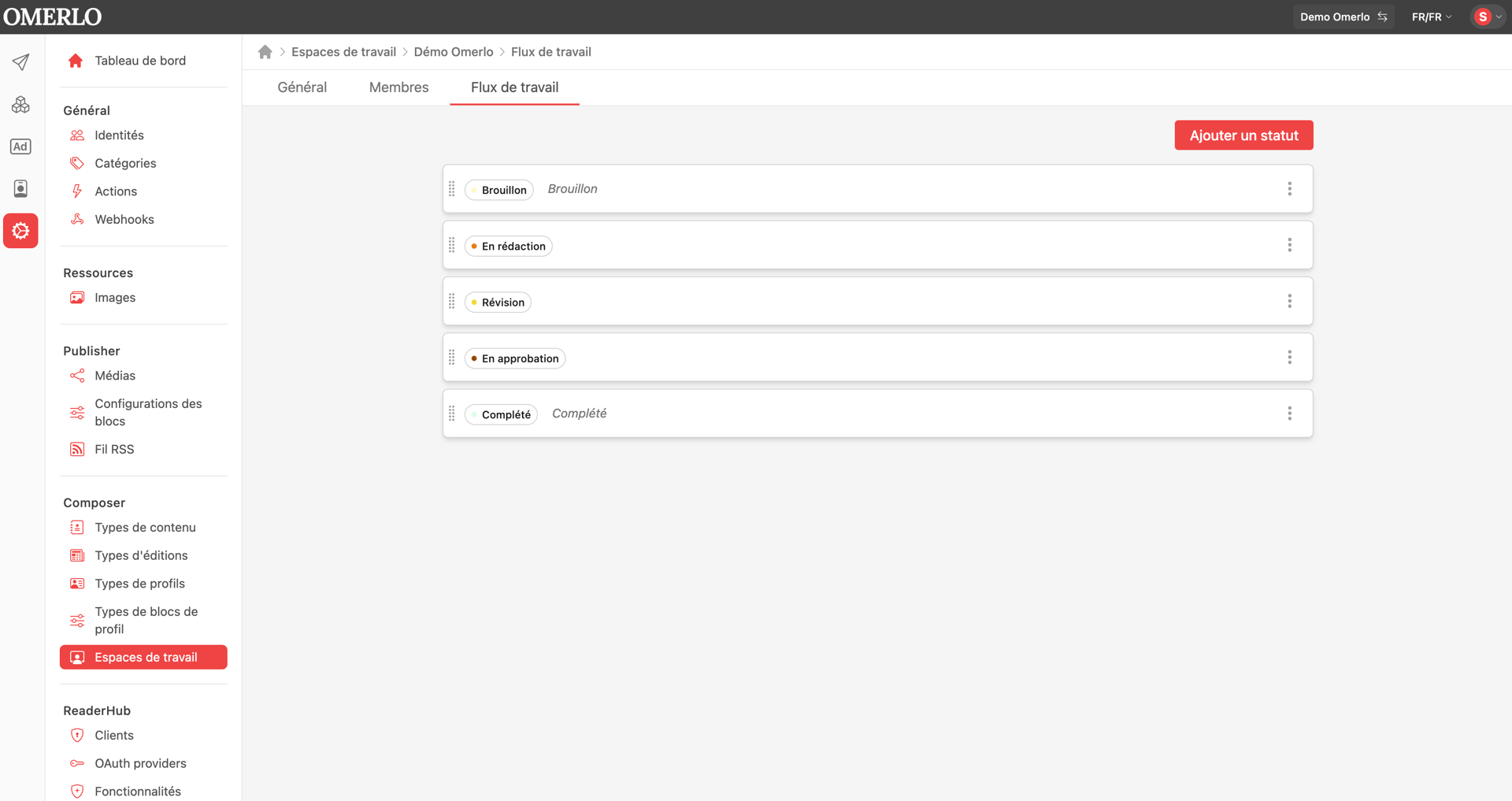
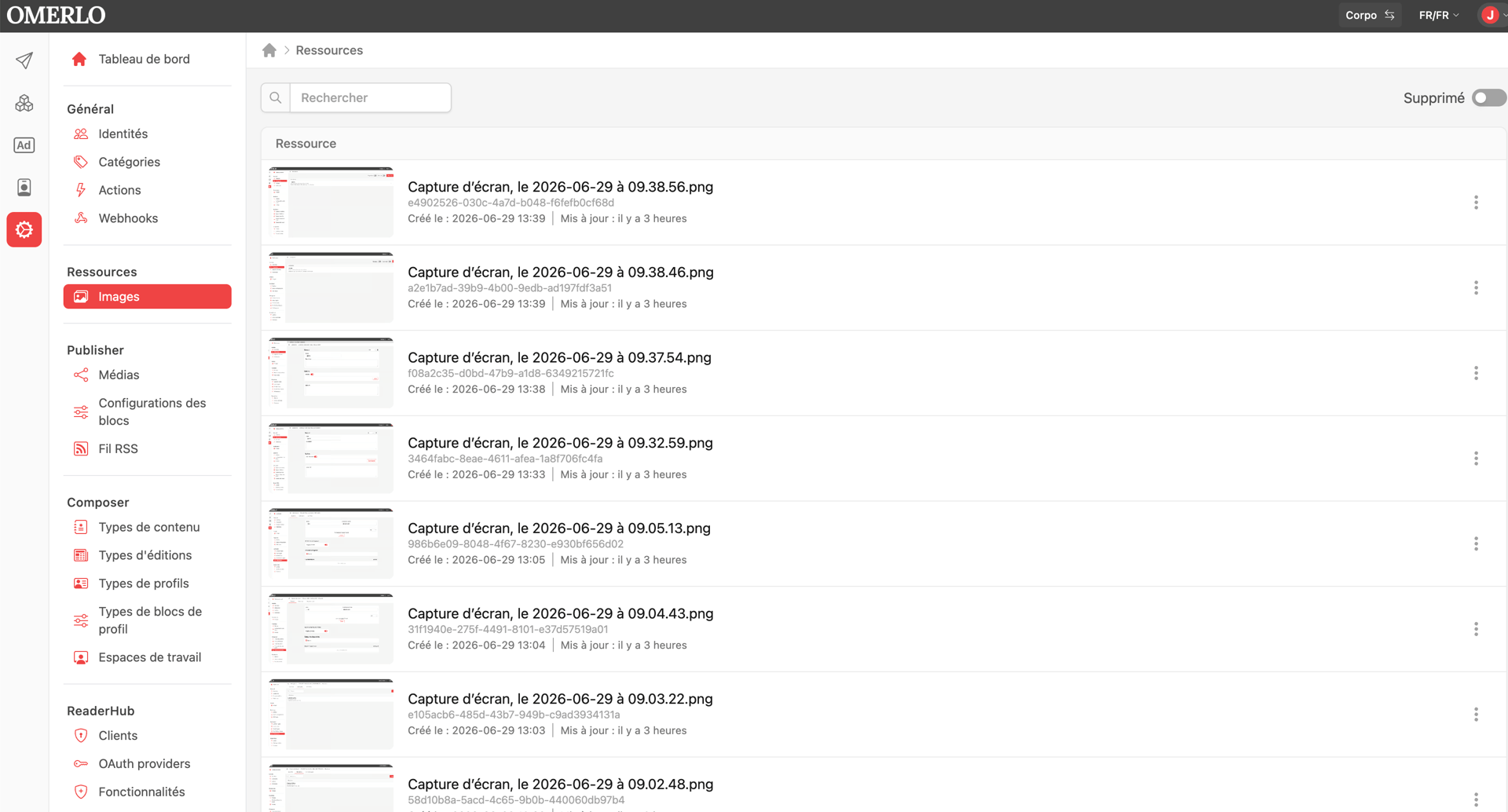
Click the Admin icon (gear) in the left sidebar, then, under Ressources (Resources), choose Images. The list of all images is displayed with a preview, the file name, the identifier and the creation and update dates.
Searching and filtering
Use the Rechercher (Search) field at the top to find an image by name. The Supprimé (Deleted) toggle (top right) shows images that have been deleted.
Editing an image
Click an image to open its detail page. The Name and File key are read-only. You can set the Gravity, that is, the focal point used during automatic cropping: Center, North, North-East, East, South-East, South, South-West, West or North-West.
Credit and caption
Lower down, per language (selector at the top right of the section), fill in the Credit (source or photographer attribution) and the HTML caption. Use the language selector to enter this information in each language.
Deleting an image
The trash icon, next to the language selector, deletes the image. Deleted images can still be viewed through the Deleted toggle in the list.