TUTORIAL
Configuring an RSS feed V6
Set up an RSS feed to automatically syndicate your content to other platforms.

About RSS feeds
An RSS feed generates a standardized stream of a media's content that external platforms (RSS readers, syndication services such as dlvr.it, automated social-media tools) can consume to automatically republish your articles. RSS feeds are managed in the Admin section of the CMS.
Accessing RSS feeds
Click the Admin icon (gear) in the left sidebar, then, under Publisher, choose Fil RSS (RSS feed). The list of existing feeds is displayed, each with its name, identifier and creation and update dates.
Creating an RSS feed
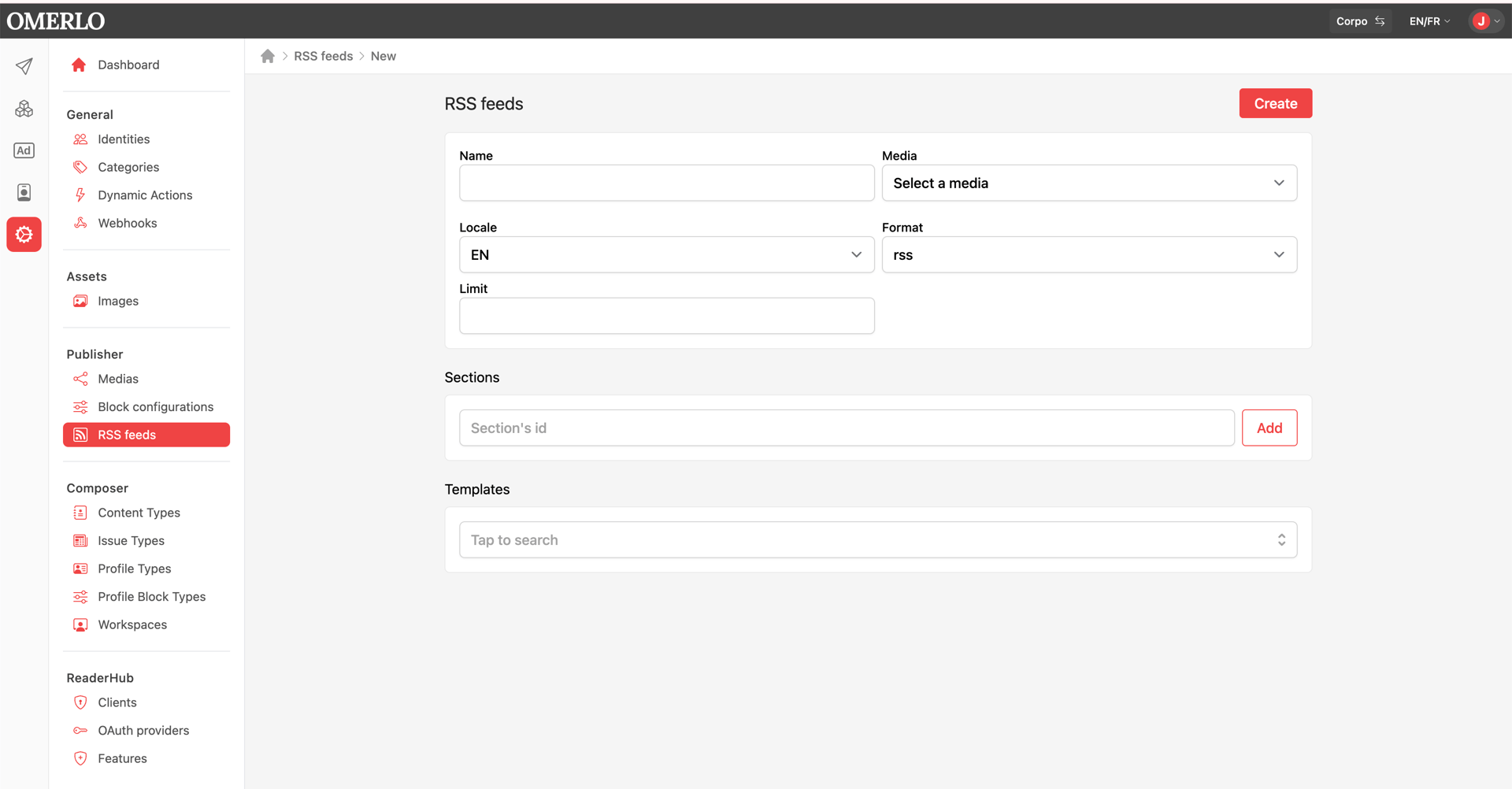
Click the Nouveau (New) button, then fill in the following fields: the feed Name, the Media whose content will be distributed, the Language (FR or EN), the Format (rss) and the Limit, that is, the maximum number of items included in the feed.
Targeting sections
In the Sections block, enter a section identifier in the provided field, then click Ajouter (Add). Repeat to restrict the feed to one or more specific sections of the media.
Choosing a template
In the Gabarit (Template) block, use the Taper pour rechercher (Type to search) field to select the template that determines the formatting of the feed. Then click Créer (Create) to save the feed.
Managing existing feeds
From the list, the actions menu (⋮) on each feed lets you edit or delete it. The Supprimé (Deleted) toggle, top right, shows feeds that have been deleted.